Start with this character
RikUI opens setup once for a character that has not completed or skipped it. You can also type /rik setup. Keeping your current interface is the default. Nothing changes until Apply.
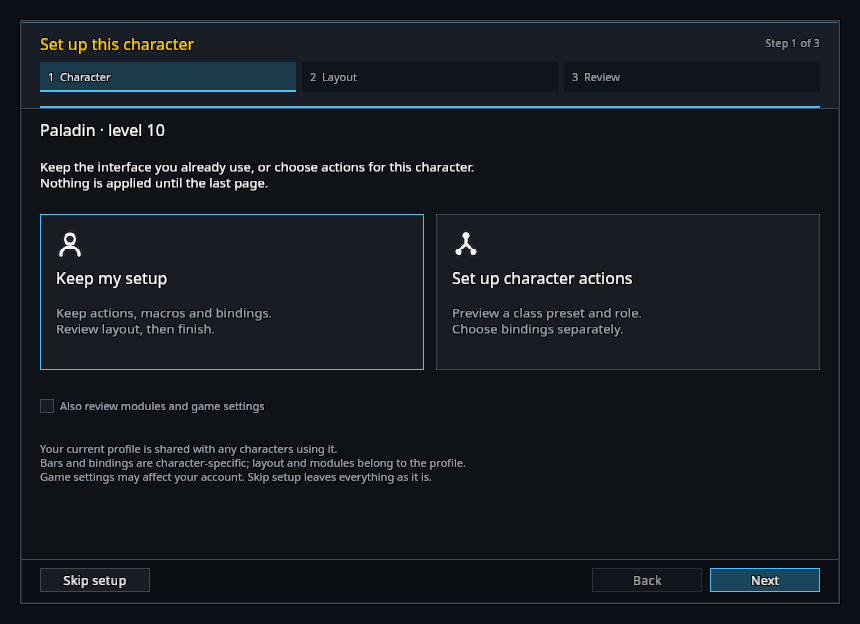
Keep my setup keeps actions, macros and bindings. It takes three steps: choose, review layout, then review changes.
Set up character actions adds role and binding previews. The preset uses learned abilities and reserves later abilities. This does not automatically replace your bindings.
Check Also review modules and game settings only if you want those extra choices. Skip setup applies nothing and stops the automatic prompt on this character. You can reopen it later.
Preview character actions
Choose a preset and role. Click or hover an ability to read its name and learning status. Previous bar and Next bar show other pages, including supported forms or stances. Dim icons are not learned yet.
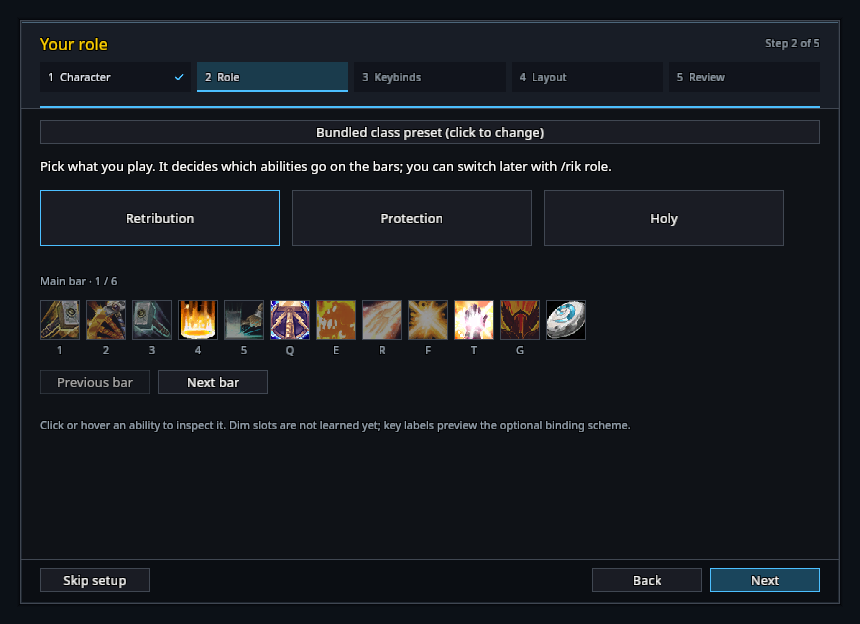
Key labels preview RikUI's optional binding scheme. They do not indicate that your current bindings have changed. Available presets depend on your class.
Choose bindings separately
Keep current bindings by leaving Replace this character's bindings with these keys unchecked. To adopt the displayed scheme, check it explicitly. Hover a key to inspect its proposed action.
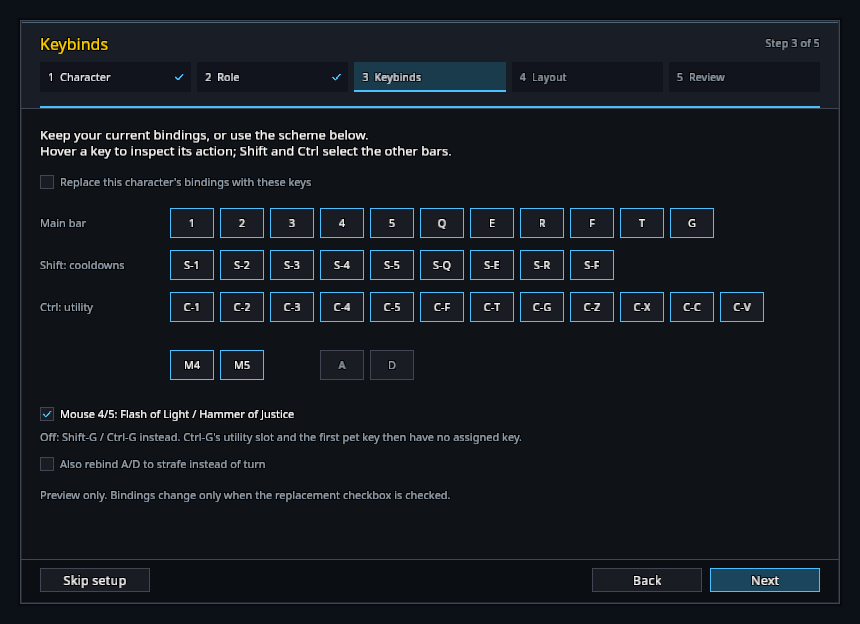
Main keys, Shift and Ctrl use separate action bars. Mouse 4/5 and A/D strafing are separate options. Without mouse side buttons, their actions use the stated keyboard fallback. Bindings are saved for this character.
Keep or choose a layout
Current positions are kept by default. Clicking a layout card selects a new arrangement; Keep my current positions switches that change off again. These maps show frame groups, rather than live game contents.
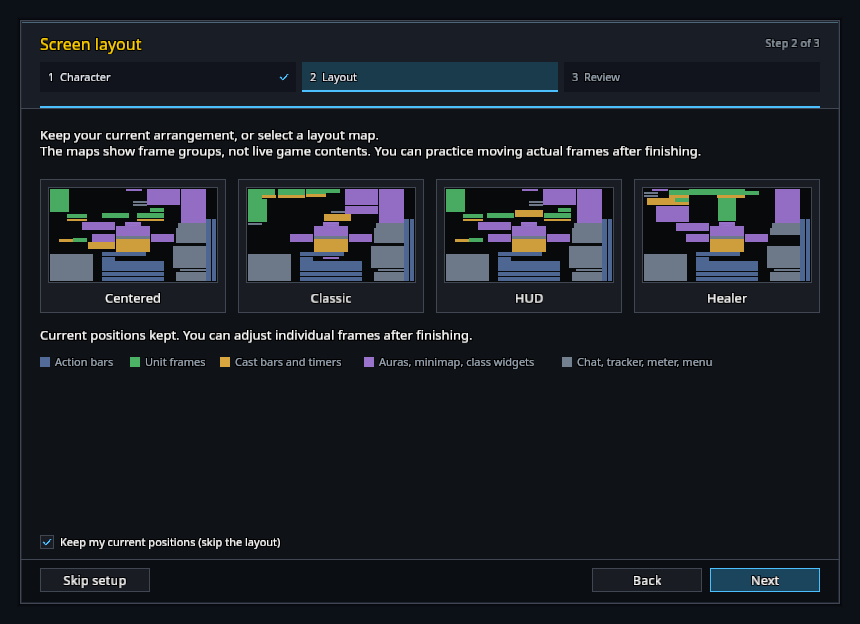
Layout and modules belong to the active profile and can affect other characters using it. You can adjust actual frames after finishing.
Optional modules and account settings
This page appears only when requested on the first page. Module changes need a reload. Checked game settings apply only when Apply checked game settings is also checked; otherwise they are kept. Game settings may affect the account.
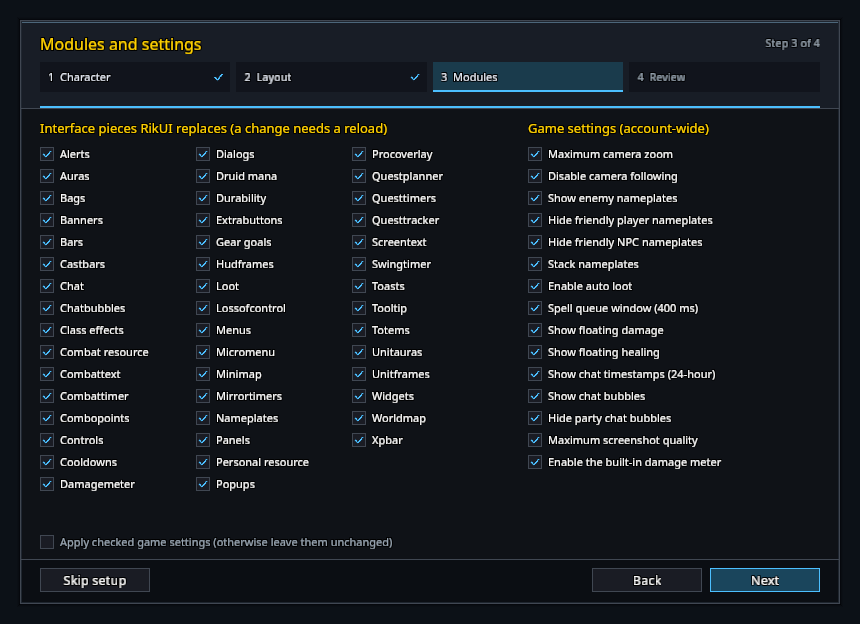
Module choices apply after setup completes. If setup fails, your existing module choices are kept.
Review changes
Review selected operations and uncheck anything to keep. Back follows the chosen route. Choosing to keep everything does not replace an existing setup restore point.
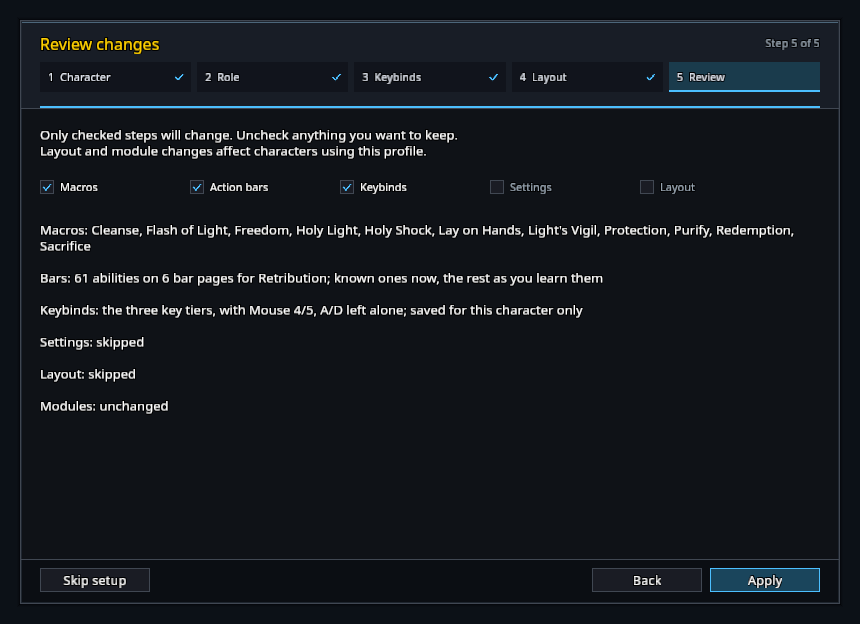
Use /rik undo to restore the previous setup. If setup fails, read the error before continuing: some selected changes may already have applied.
Optional hands-on tutorial
After finishing, close and play, or open the existing configuration tools.
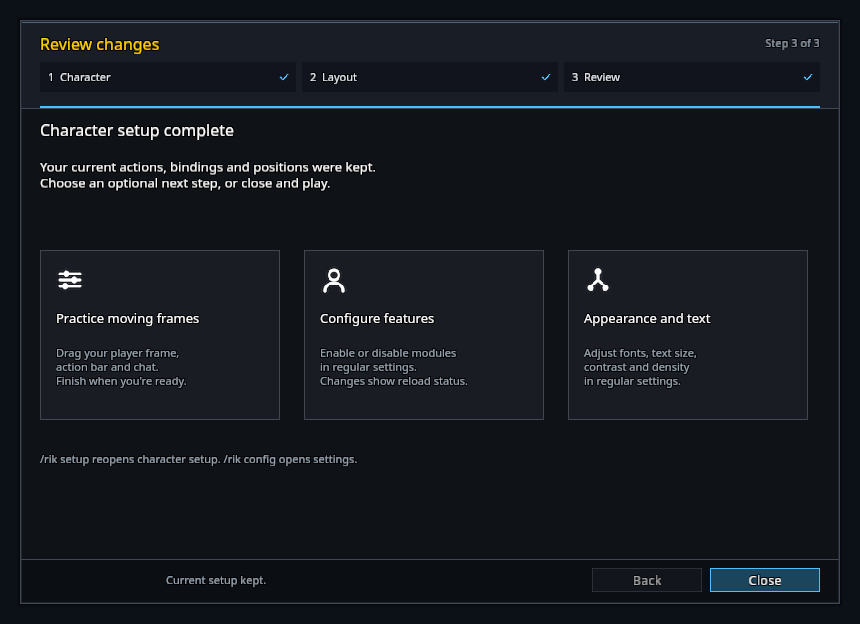
Practice moving frames opens movement handles for your player frame, then the main action bar and chat. Drag and release to save a position. Next frame moves on; Finish, Stop or Escape ends the tutorial. Shift or Alt bypasses snapping. Already-unlocked movers keep their state.
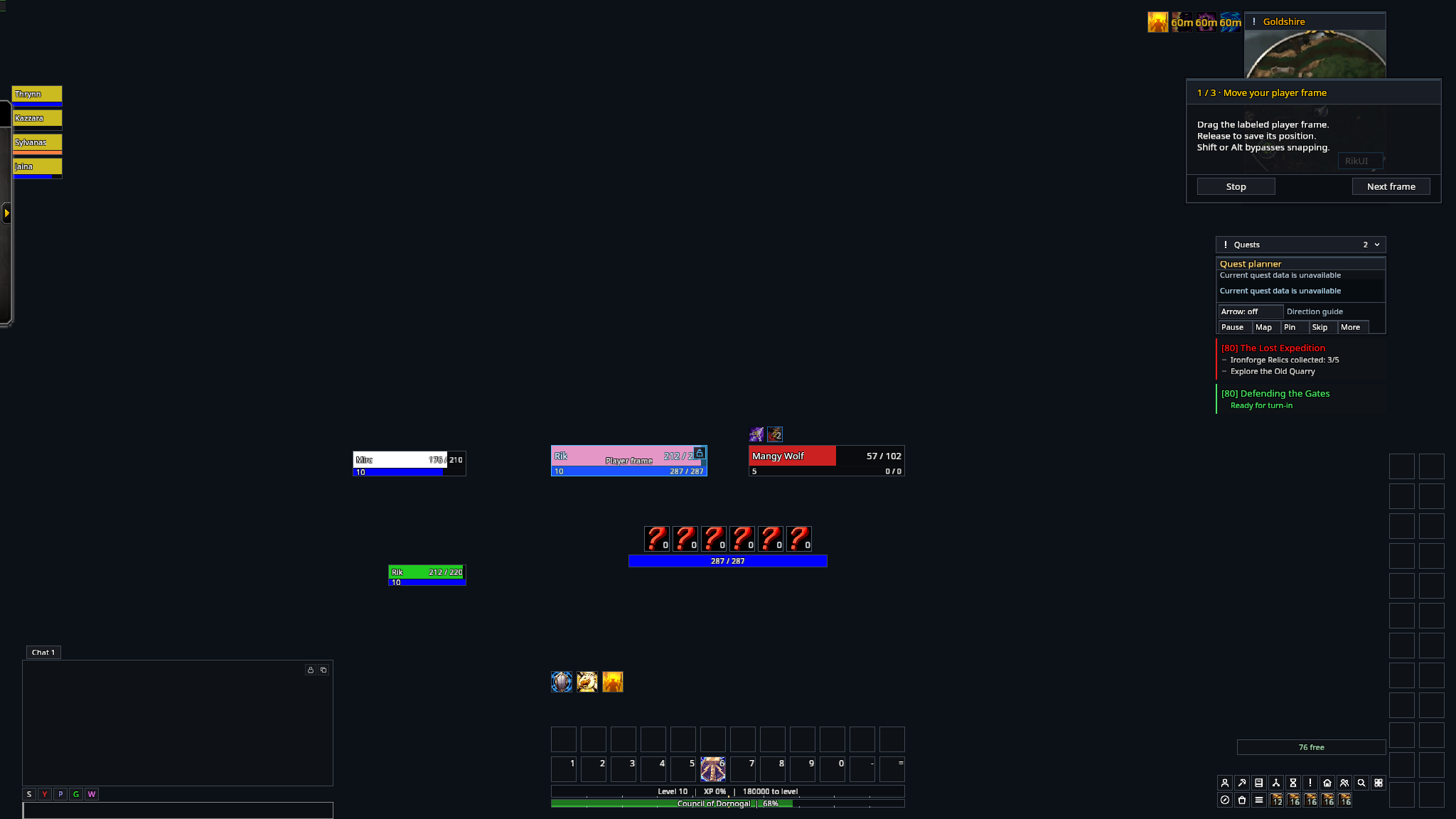
Combat stops practice and locks only movers opened by the tutorial. Missing or disabled frames can be skipped. Practice adjusts current positions and does not apply another character preset.
Configure features opens modules. Appearance and text opens themes, font size, contrast and density. Grid and exact coordinates are in General settings; bar shapes are in Bars.
Returning later
Type /rik setup to reopen setup. /rik config opens ordinary settings. Changes requiring a reload are shown before the completion button reloads.
Setup waits for combat and preserves the page when interrupted. The Wizard module controls the automatic prompt; manual setup remains available.