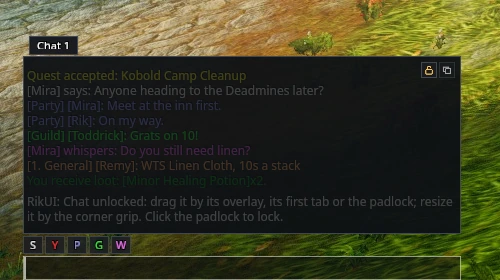
Read and send messages
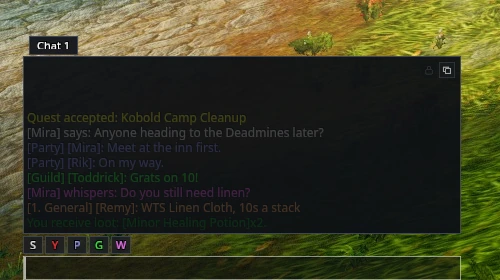
Chat tabs sit above the message area, with the input bar and channel buttons below. Click a tab to switch conversations.
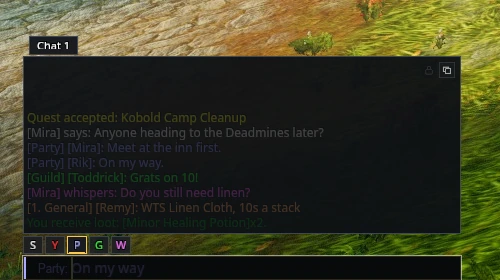
Press Enter to type. The input bar shows the channel you are speaking in, and the buttons under the window switch between say, yell, party, guild and whisper.
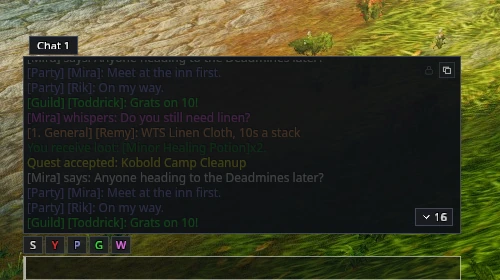
Scroll up to read earlier messages. A button at the corner counts the lines below and jumps back to the newest.
Click a player name to whisper. Alt-click invites them; Ctrl-click runs a who lookup. The usual Shift-click and right-click actions remain available.
Copy chat text
Click the copy button in the top-right corner of the chat frame. The copy window shows that tab's messages as plain text. Press Ctrl-A to select everything or drag to select part of it, then Ctrl-C to copy. The footer counts the lines shown.
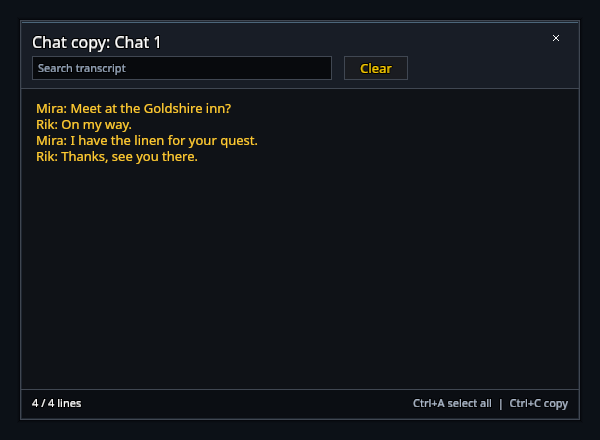
Web addresses in chat open in the same window so you can copy them.
Search the history
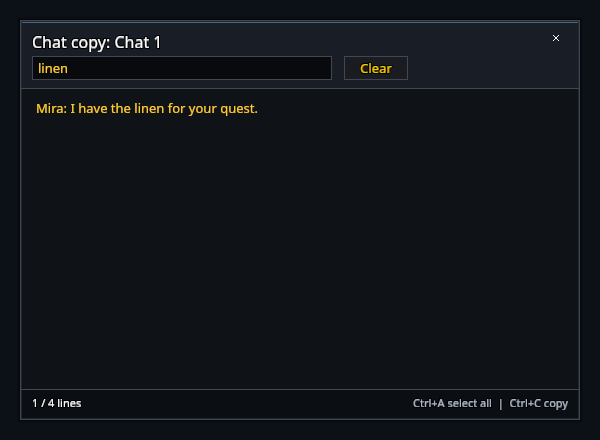
Type in the copy window's Search transcript box to keep only the lines containing that text. The line count shows how many matched. Clear restores the whole transcript.
Highlights and muted phrases
Open Settings → Chat to set highlight words and phrases. For example, lf tank, deadmines highlights either phrase. Matching ignores letter case.
Mute public chat phrases hides matching messages in say, yell, emotes and numbered channels. Guild chat, groups, whispers and your own messages remain visible.
Each field accepts up to 16 comma-separated phrases, with 256 characters in total. Clear a field to turn that filter off.
Font, timestamps and size
Chat settings include font size, timestamps, shortened channel labels and history preferences.
Use /rik chat unlock to move and resize the chat area, then /rik chat lock when finished. /rik chat reset restores its position.