Arrange your bars
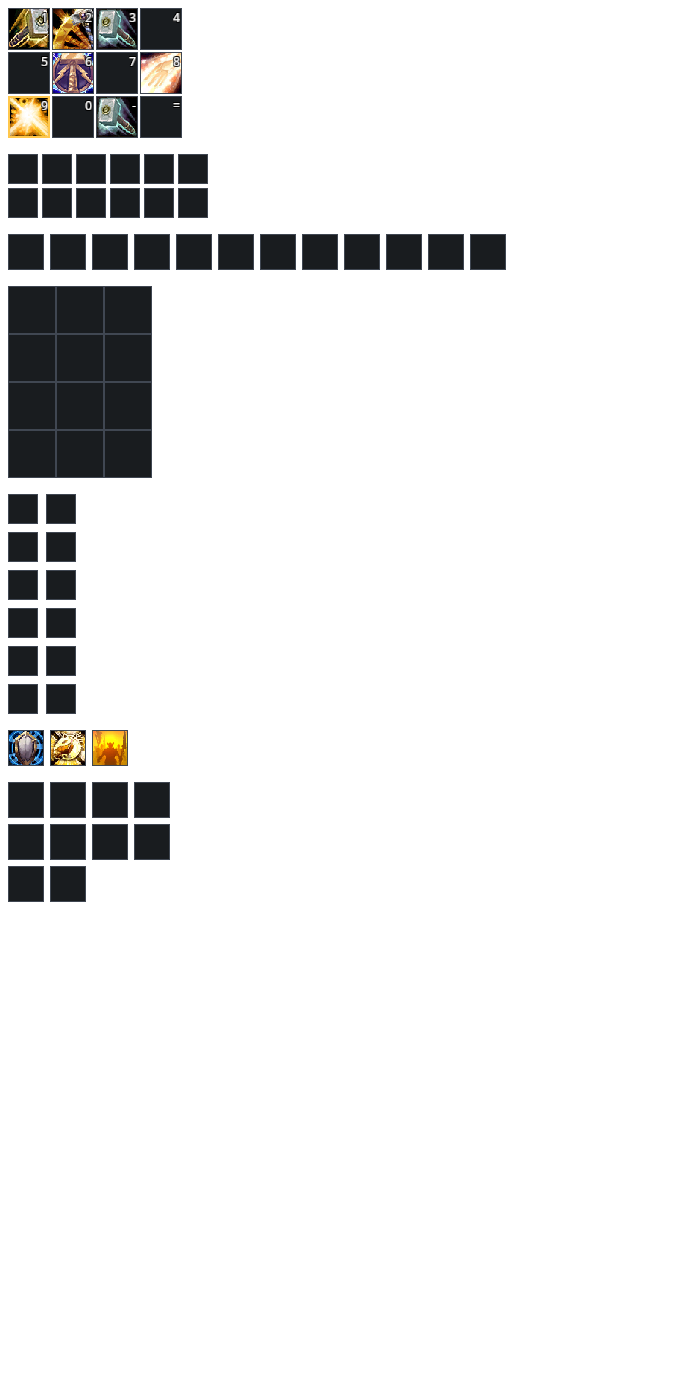
RikUI starts with three action rows and two side columns, with separate stance and pet controls. Use /rik move to place each group. Every bar can have a different number of buttons per row, button size and spacing; these are independent of its action page and bindings.

The second and third rows stack above the main row. The third row fades while idle and shows again on hover, in combat, or while you move it.


The two side columns hold the same kind of buttons in a vertical arrangement.


Your normal action-bar keys and buttons still work. Drag spells and items onto buttons outside combat.
Change each bar's shape
Open Settings → Bars and layout, choose Bar to arrange, then adjust that bar’s three shape controls. Choose 1–12 buttons per row for action bars, or up to 10 for pet/stance controls; buttons range from 24–64 units with 0–16 units between them. Actions wrap left to right and retain slot order. Protected geometry waits until combat ends and does not require a reload.
Each bar is independent. Use a single row, a vertical column or a compact grid without changing your bindings. Use /rik move to place the resized bar.
Labels and empty slots
Open Settings → Bars and layout to show or hide empty slots, key labels and cooldown numbers, and to fade any bar until you hover it. Empty slots appear while bars are unlocked so you can see the full row.
Preset ghost icons mark preset abilities you have not learned yet, with the level that teaches them. They are off unless you turn them on there or with /rik ghosts on. A ghost icon cannot cast the spell.

Bars change only when you change them
By default nothing is added to your bars by itself. Add new spells to bars in Settings → Bars and layout lets the game put each newly learned spell into an empty slot; it is off unless you turn it on. Automatically update preset spell slots under System → Setup and support lets RikUI fill your preset's empty slots and upgrade ranks as you level; it is off for new characters. Characters that already had it on keep it until you switch it off.
Press or release
Act on key press in Settings → Bars and layout makes bar keys act the moment you press them instead of when you let go. It is the game's own setting, shared with its Combat options. A change made during combat applies when the fight ends.
Mouse clicks on RikUI's bars always act when you let go, as on Blizzard's bars, so pressing a button to move its action never casts it.
Pages, stances and pets
Changing your action page or stance changes the corresponding main-bar buttons. A manually selected page shows that page's twelve actions in place of the main row. A form with its own actions, such as a druid's Bear Form, does the same.


Stance controls show learned forms and stances. Pet actions appear when you have a pet. Right-click autocast toggling is not available on RikUI's pet buttons.

Other bar options
/rik gryphons on and /rik gryphons off control the end artwork. /rik stockbars show and /rik stockbars hide control the stock bars.
Use Import and export to share a preset, and Move frames to save a different arrangement.