Move a frame
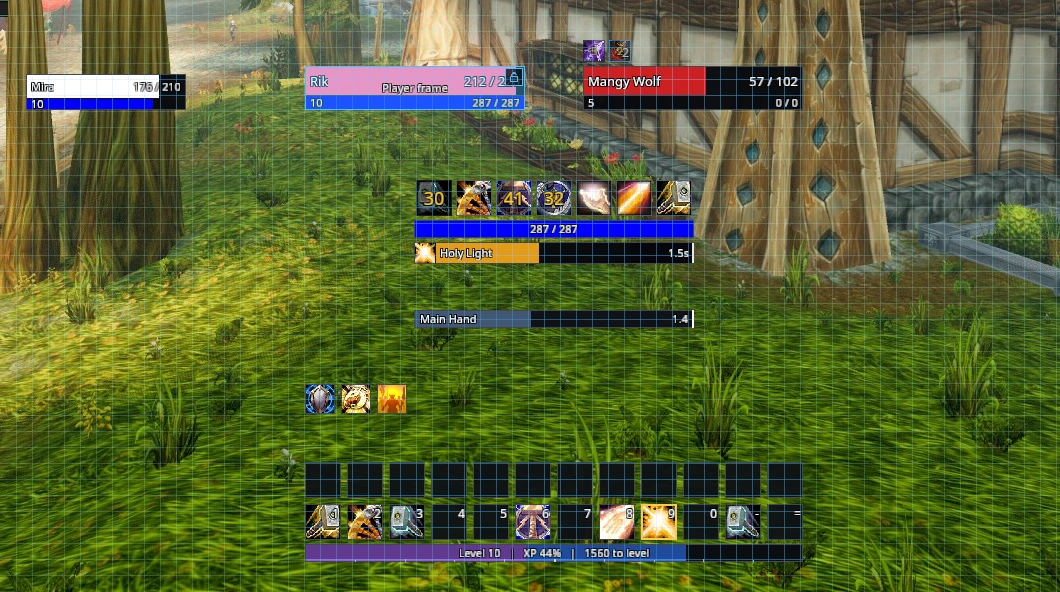
Type /rik move. Every frame gets a tinted panel with its name and a lock button; drag a panel to move that frame. Type /rik move again, or click Done beside the minimap, when you have finished.
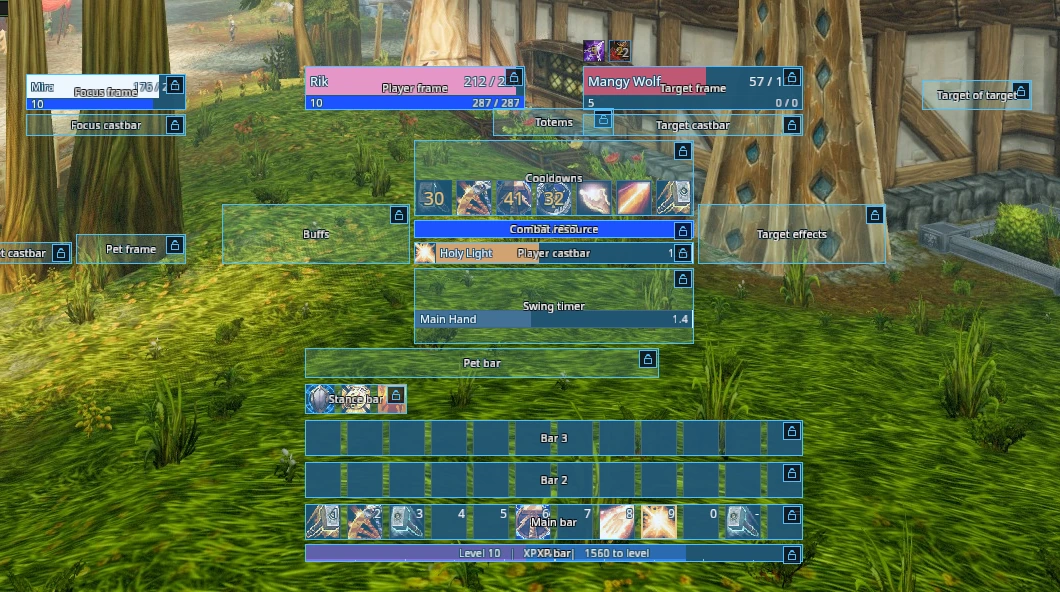
You can also hold Ctrl, Alt and Shift together to show a tag on every frame. Click a tag to unlock just that frame, or click Unlock all at the top of the screen.
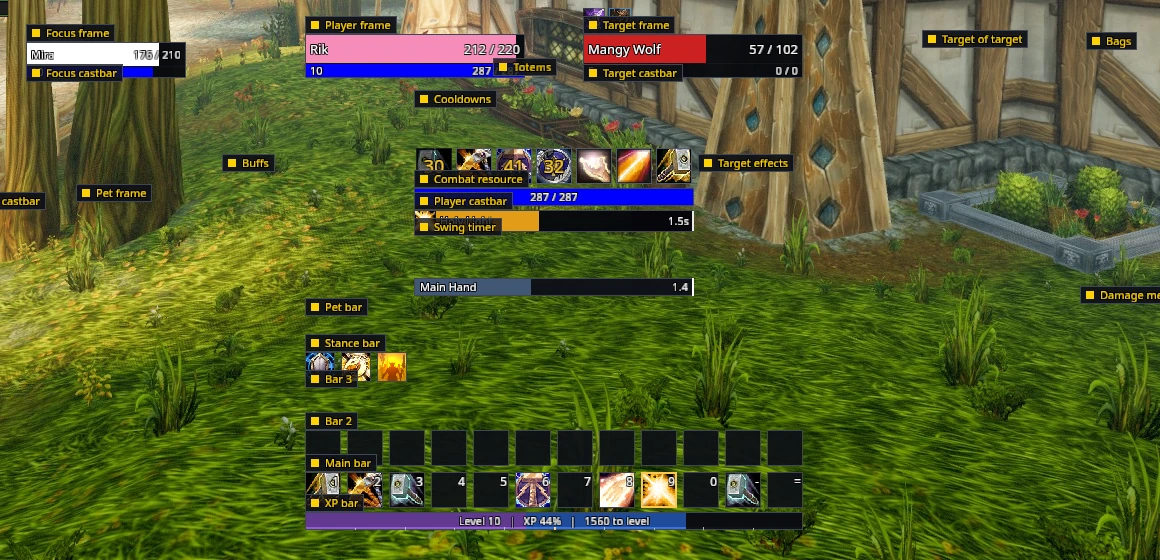
Frames stay within the screen and make room for nearby elements. Hold Shift or Alt while dragging to bypass snapping; collision and screen bounds still apply.
Resize a frame
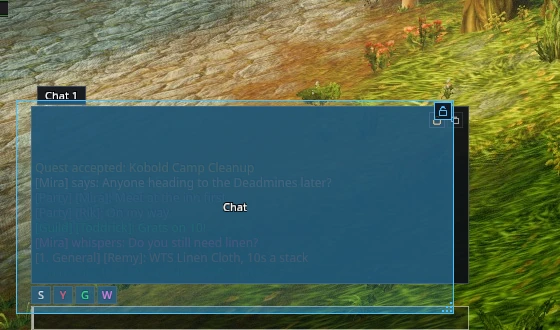
Frames that can change size, such as the chat window, have a grip in the bottom-right corner of their panel while they are unlocked. Drag it to resize; the frame stops at its neighbours and at the screen edge. /rik chat unlock unlocks the chat window on its own.
Fine positioning
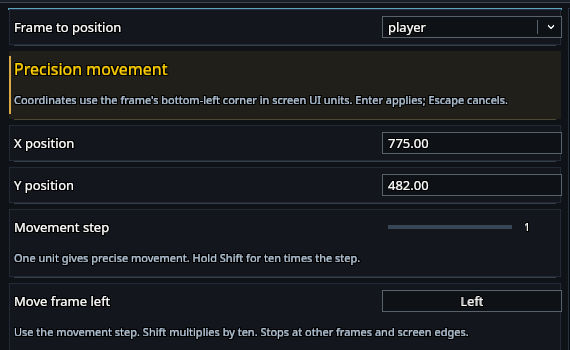
Open Settings → General, choose a frame under Frame to position, then use Left, Right, Up and Down. Movement step defaults to one screen UI unit and can increase to ten; hold Shift for ten times the selected step. X position and Y position use the frame's bottom-left corner. Type a coordinate and press Enter to apply, or Escape to cancel. These controls stop at other frames and screen edges.
Snapping and grid
Under Settings → General → Snapping and grid, choose alignment snapping, grid snapping and a visible grid independently. Grid spacing supports 1–32 screen UI units. Alignment to nearby edges and centers takes priority over grid rounding.
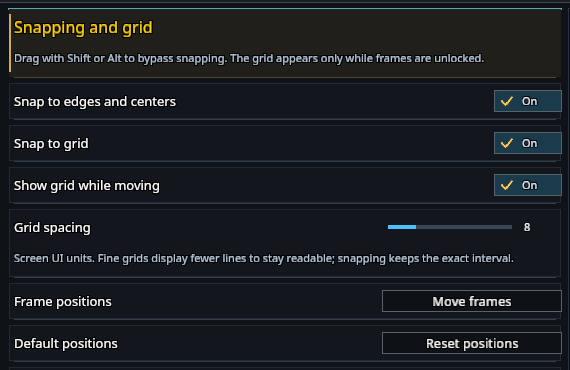
The grid appears only while frames are unlocked. At fine spacing, fewer lines are drawn to keep the screen readable; the actual snapping interval remains exact. Editor preferences belong to your character and survive switching or importing profiles.
Scale and presets
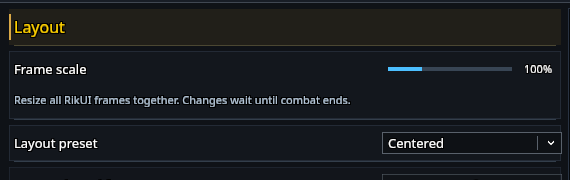
Use /rik scale 1 for normal size. Values from 0.25 to 3 are allowed. Frame scale in Settings shows the same control as a percentage.
Choose a whole-screen layout under Layout preset in Settings, or use:
| Command | Layout |
|---|---|
/rik layout hud |
Combat HUD |
/rik layout centered |
Centered |
/rik layout classic |
Classic |
/rik layout healer |
Healer |
Classic keeps player and target in the corner on short screens. Healer places party or raid frames above the combat column, with your own unit frames above them.
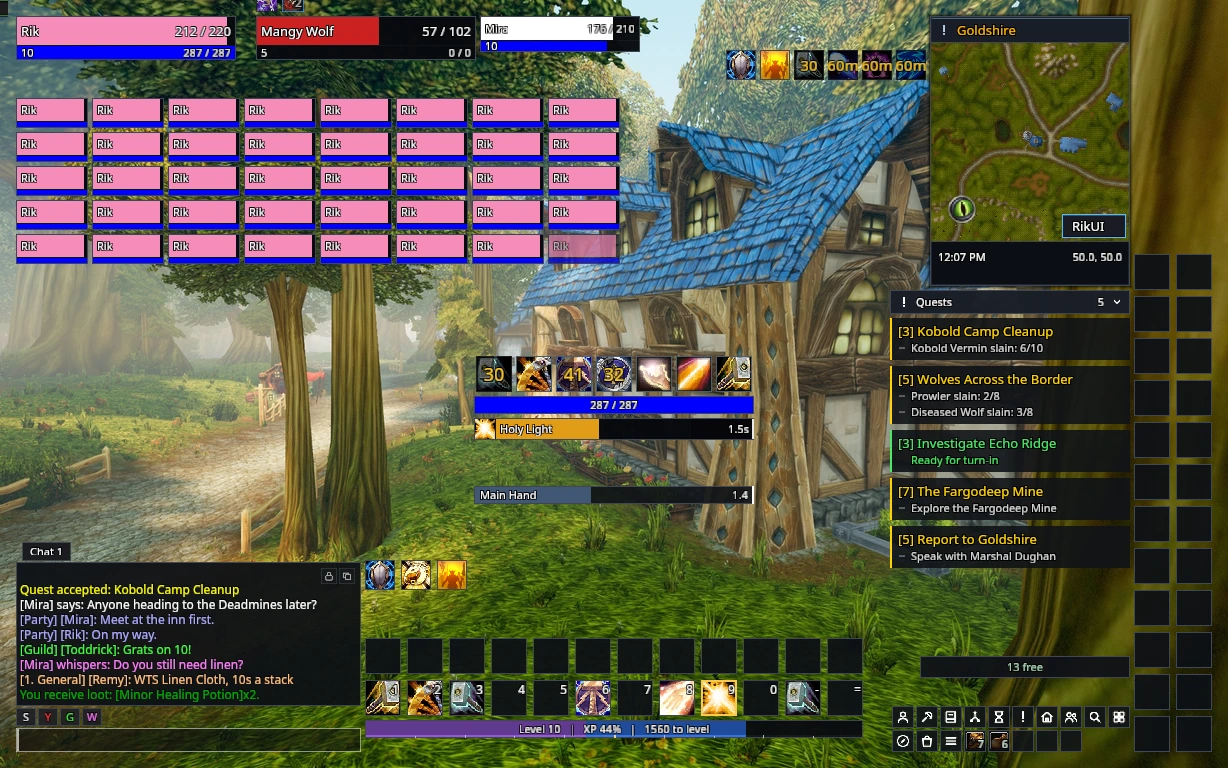
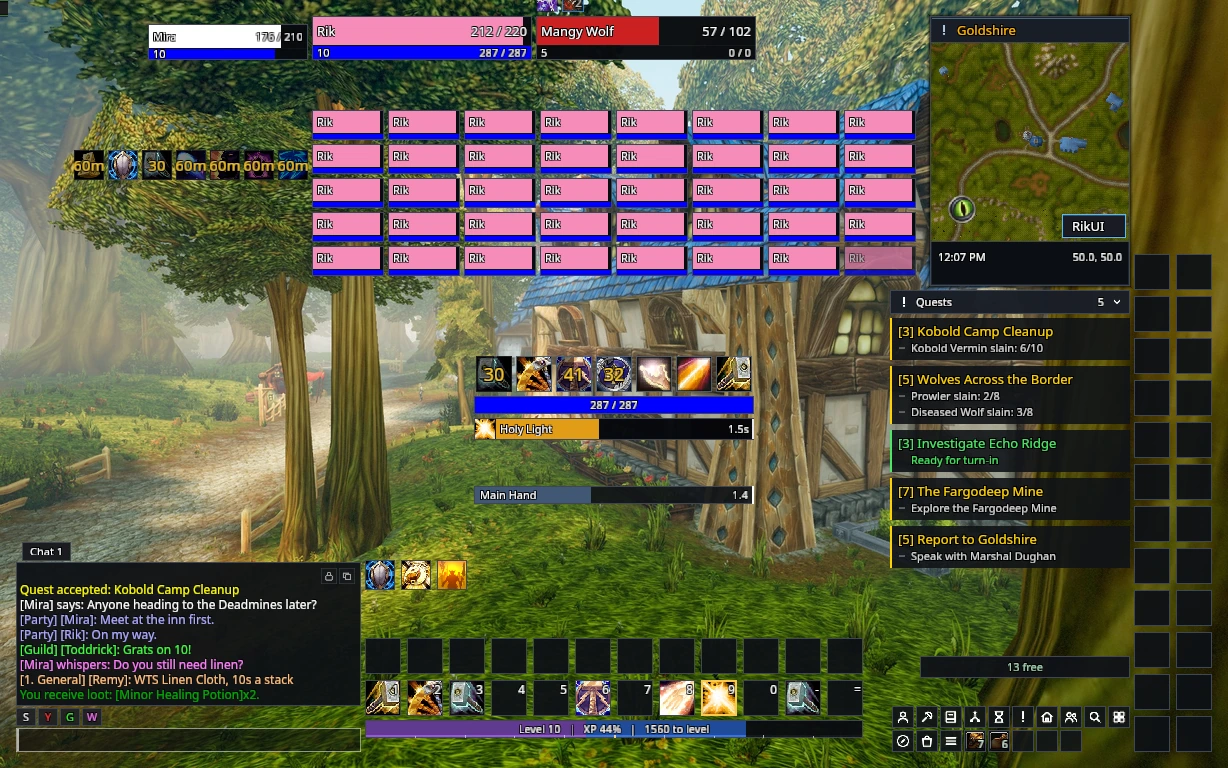
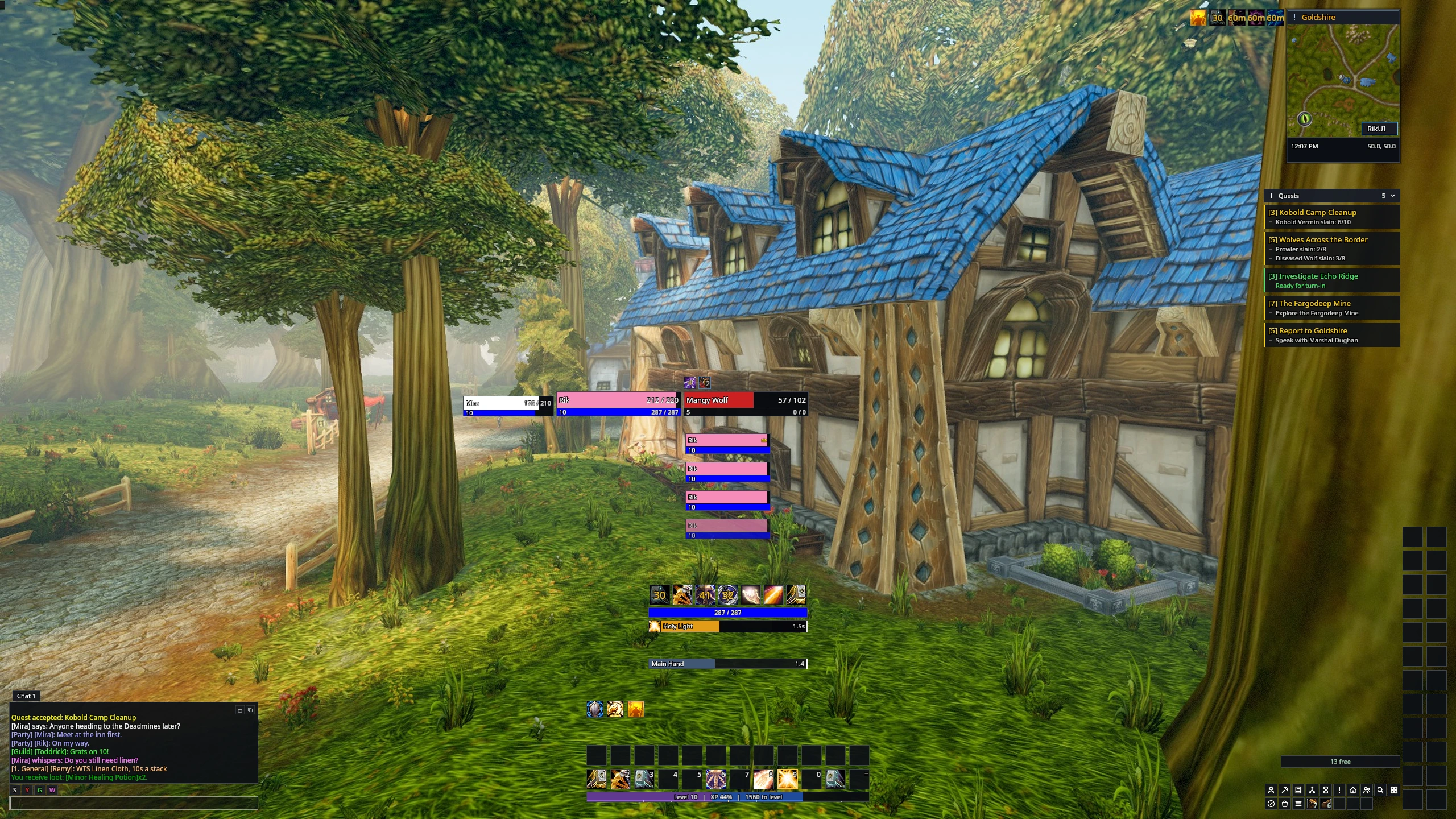
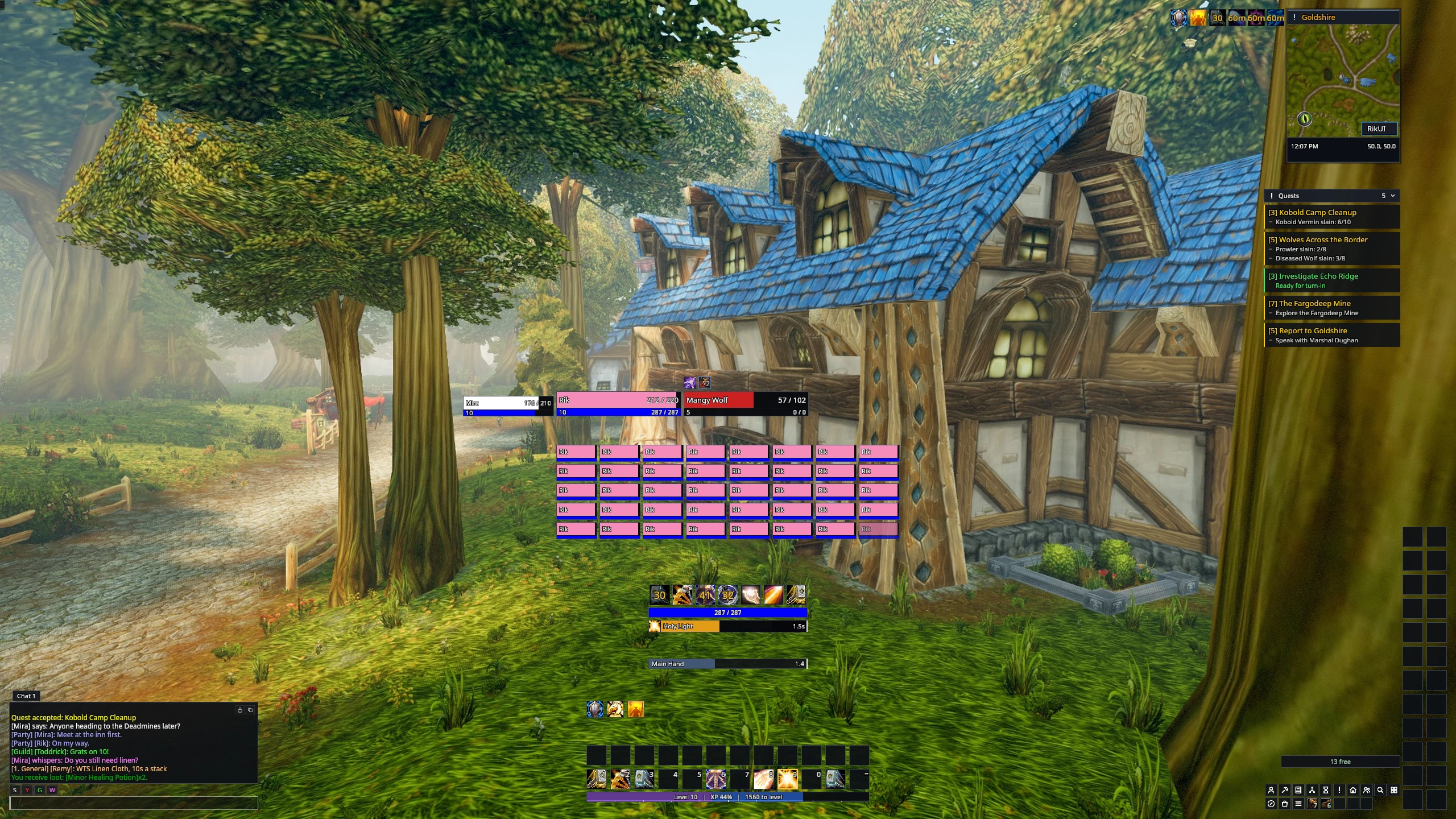
/rik hud arranges only the combat HUD. Player and target frames sit on opposite sides of the character.
Reset or undo
/rik layout undo, or Undo layout change in Settings, restores the layout before your last layout change. /rik move reset restores frame positions while keeping your scale.

Arrange protected frames outside combat. Your positions are saved with the active profile.