Open settings
Type /rik config, or click RikUI beside the minimap and choose Settings. You can also find RikUI under the game's Options → AddOns.
Pages are grouped under Interface, Gameplay and System. Use Search settings to find a control; try bags columns or cast time. Escape clears the search.
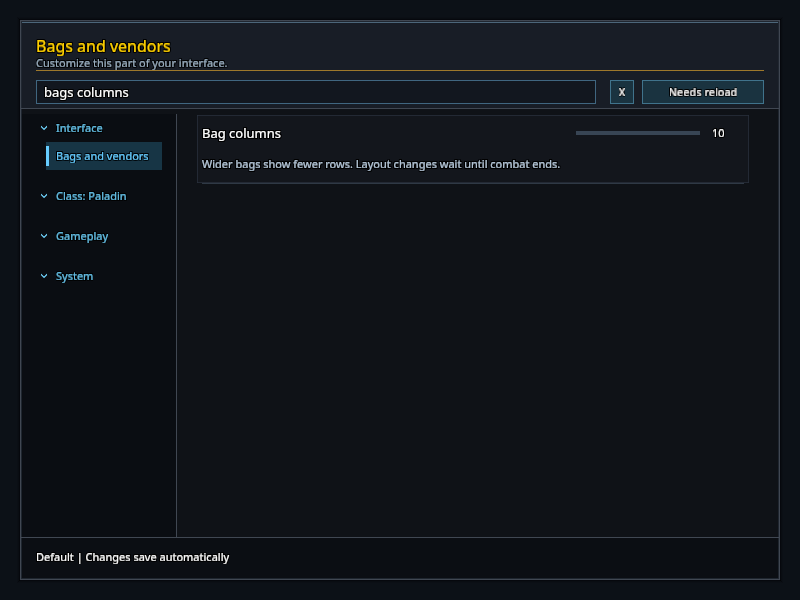
Each feature has its own page and an enable switch. Enabling a feature also enables its required modules. Reload UI to apply module choices. The Castbars page, for example, holds bar width, bar height and Show remaining cast time.
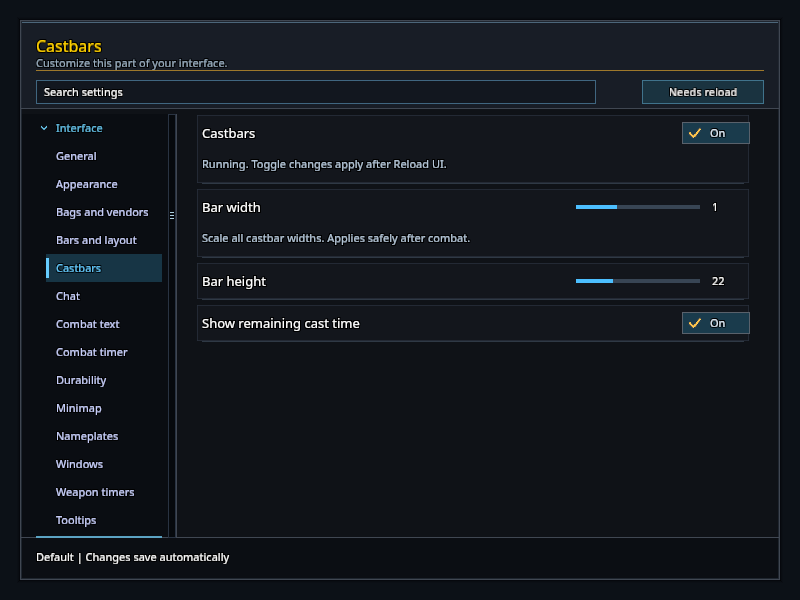
Changes save automatically. If a change needs a reload, the Reload UI button appears. Needs reload shows just the settings waiting to take effect.
Appearance
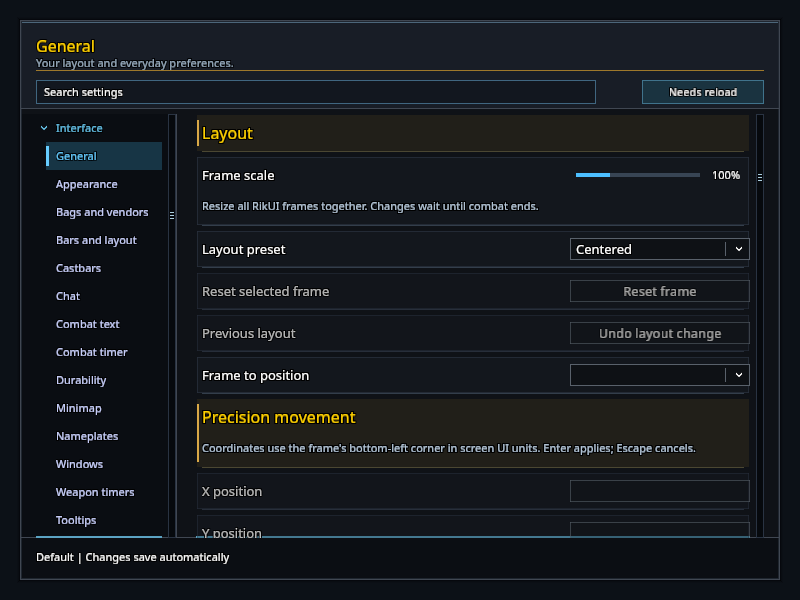
Under General, choose a layout preset, adjust frame scale, undo the last layout change or precisely position a selected frame. Use X/Y fields, adjustable movement steps, independent alignment/grid snapping and a grid while moving. See Move and resize frames for the controls and modifiers.
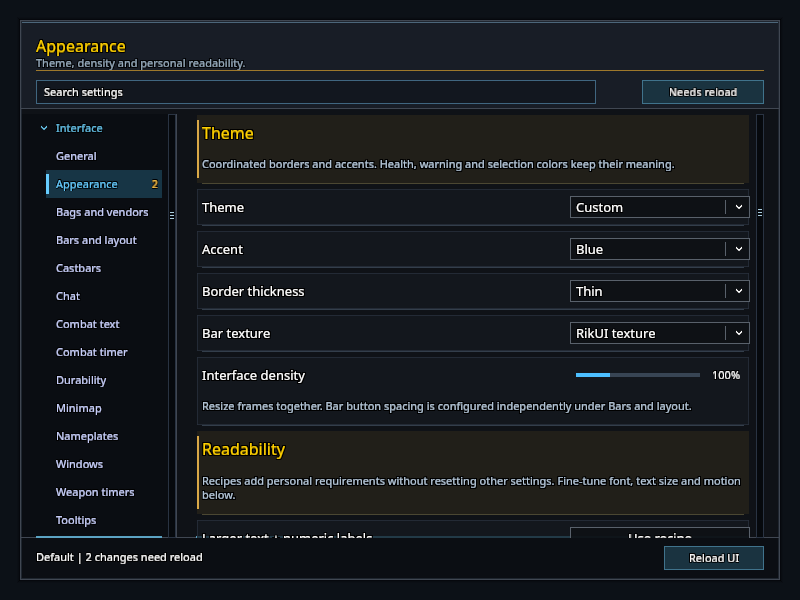
Open Appearance to choose Classic, Ocean or Ink, or adjust accents, border thickness and bar textures individually. Health and warning colors retain their meaning. Interface density resizes frames together. Readability recipes add larger text, numeric labels, stronger borders or reduced motion; they preserve unrelated preferences and save personal requirements for future creator updates. Reload after text and appearance changes.
Open Bars and layout and choose Bar to arrange. Only that bar’s buttons-per-row, button-size and spacing controls are shown. Slots and bindings remain in order. Protected geometry changes wait until combat ends.
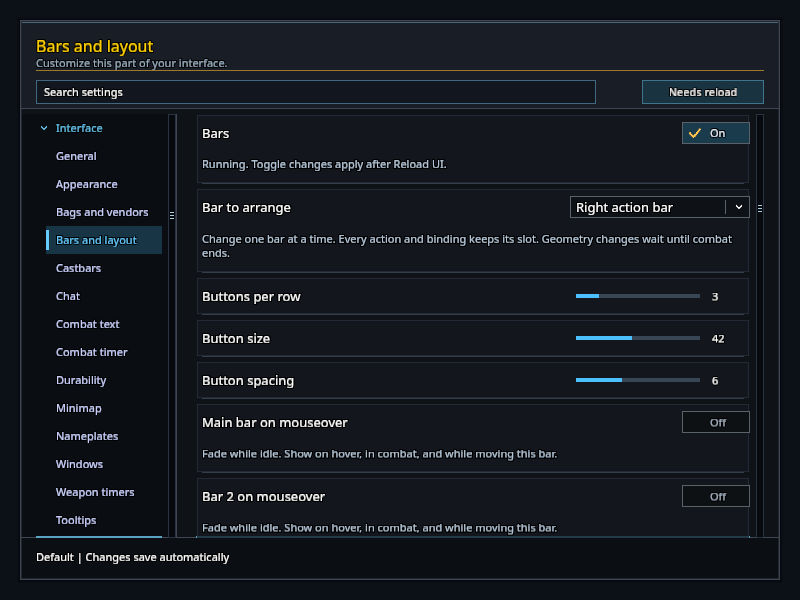
- Font chooses Noto Sans or the game's font.
- Text size adjusts shared labels from 85% to 130%. Chat has its own font size.
- Reduce cosmetic motion turns off RikUI fades, flashes and pulses. Timers continue normally.
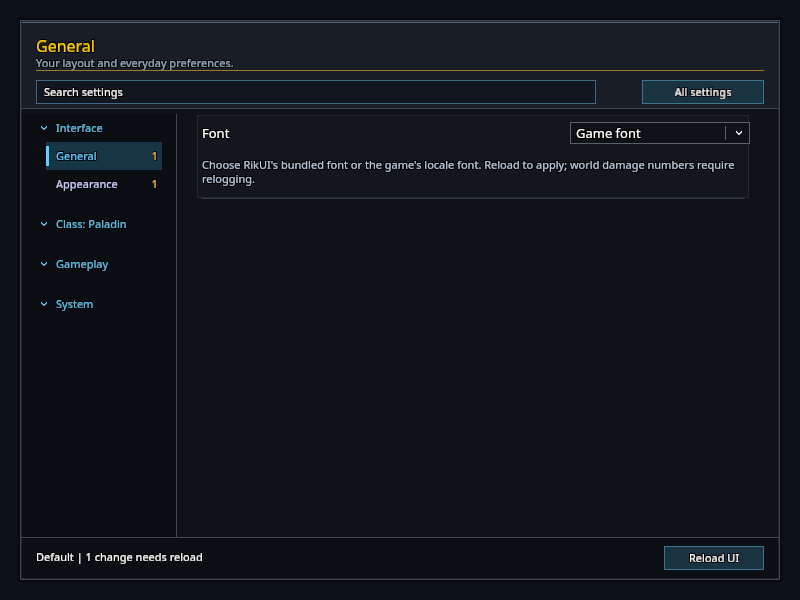
Font, text size and reduced motion need a reload. Changes to the font used by damage numbers need a return to the character list.
Your class area
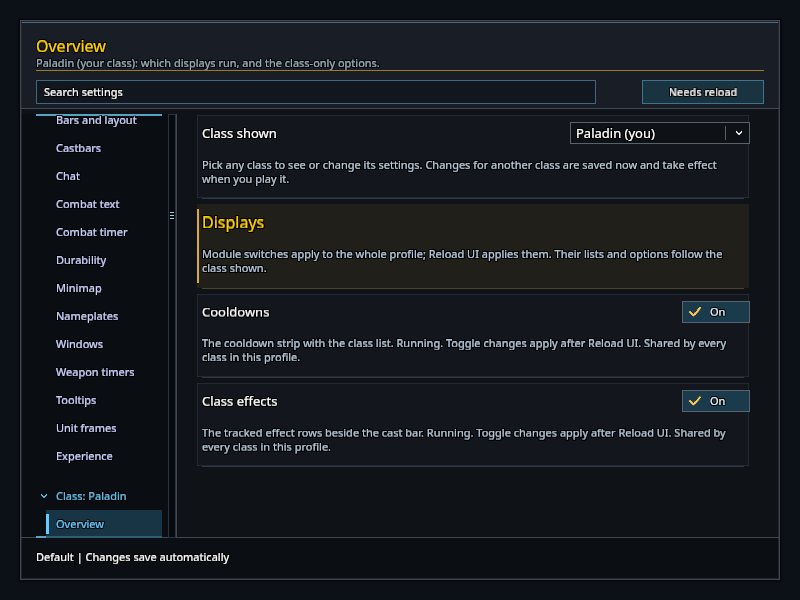
The sidebar has a Class group between Interface and Gameplay. Its label names the class it is showing, and every page in it starts with a Class shown chooser, so you can look at and change any class's settings before you log over to that character. Changes for another class are saved straight away and take effect when you play it.
Overview holds the switches for the class displays: the cooldown strip, the class effect rows, and only what the class shown has, such as Combo points for rogues and druids, Totems for shamans, and Form mana for druids with its Show mana in Cat and Bear option. These switches apply to the whole profile.
Cooldown strip shows the class list the strip adds after the game's tracked entries. Move a spell up or down, remove it, or add one from RikUI's list of the class's spells; Reset returns to RikUI's list. The page also names the effect cells for that class and opens the game's own Tracked spells settings.
Class effects does the same for the three effect groups the rows track: your own effects, effects on your target, and your effects on others. Those changes apply after a reload.
Choose your modules
Open System → Modules to enable or disable features. Each module has an On switch and shows whether it is running. Enabling a module also enables anything it needs. Reload to apply your choices.
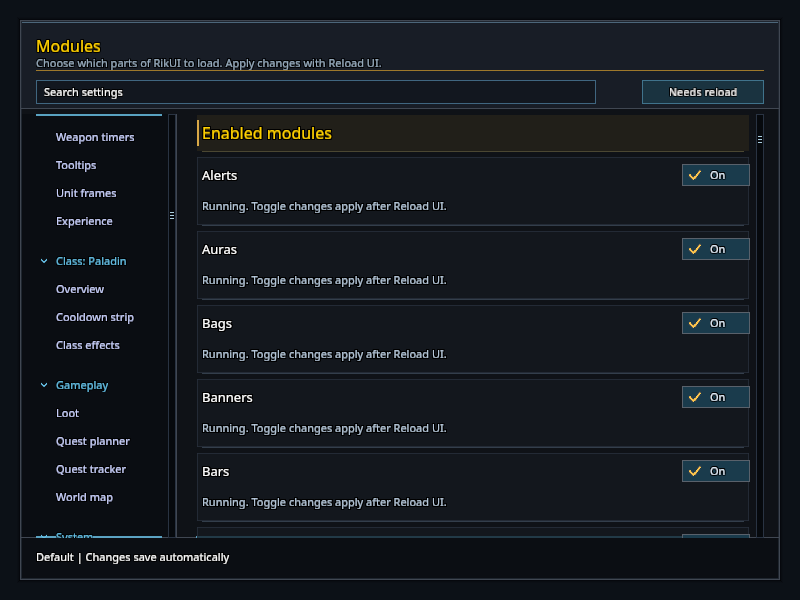
If a feature is off, its settings remain visible but cannot be changed. The Modules page explains when another module is required.
Profiles
Open System → Profiles to create, copy or select a profile. Enter a name, then click Create to start from defaults or Copy to keep your current setup. A copy keeps its own settings, so changes to it will not affect the original.
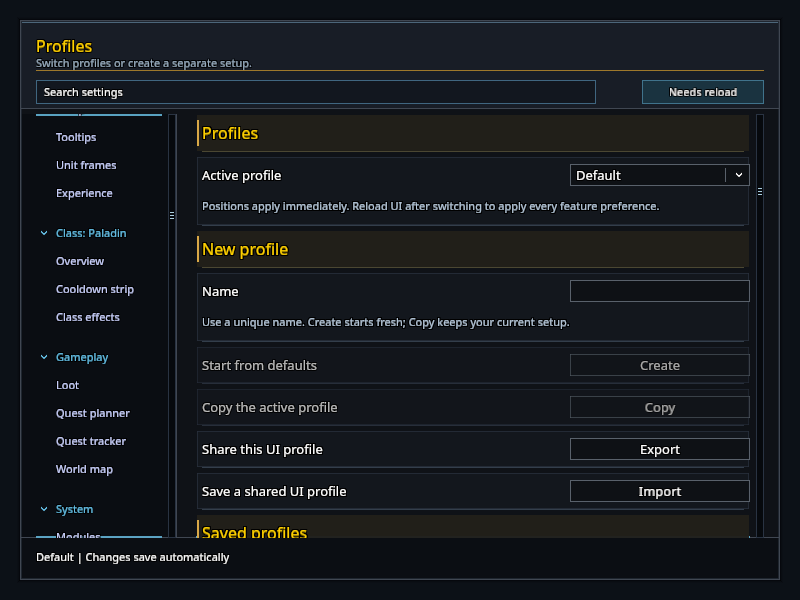
Choose a profile under Active profile, then reload to apply all its settings. Switch profiles outside combat; a profile switch is refused while combat is active.
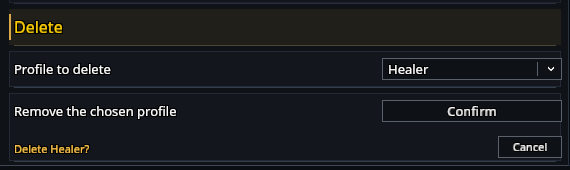
Delete removes an inactive profile after confirmation. Click Delete, then Confirm; Cancel leaves the profile alone. Reset active UI profile first saves your settings in a separate Recovery N profile, then restores the defaults. Select the recovery profile if you want those settings back.
Saved profiles lets you copy or export a selected profile without activating it. Reuse layout copies positions and chat size after confirmation; your other preferences stay in place, and General → Undo layout change restores the old layout. Create minimal makes an inactive profile with modules disabled for troubleshooting. Undo delete restores the most recent deletion until reload, unless its name has been reused.
The Export and Import buttons on this page open the same windows as Import and export, for sharing a profile or keeping a portable backup.
Switching by situation and role
RikUI can change profile or layout for you when your group changes. It's off until you tick Switch profile and layout automatically under Switch by situation. Then link any of Solo, Party, Raid and Dungeon, and any of Tank, Healer and Damage under Switch by role, to a profile or one of the four layouts. No change leaves that case alone.
Your role is the one your group gave you. Without one, RikUI goes by your talents: a tank build counts as Tank, a healing build as Healer, anything else as Damage. If a situation and a role both link a profile, or both link a layout, the situation wins. A raid can pick your profile while your role picks the layout.
A switch happens only when your situation or role changes. If you pick another profile or layout yourself, it stays until the next change. A few things make it wait or hold back:
- In combat, nothing changes until combat ends.
- While frames are unlocked for moving, RikUI waits until you lock them.
- A layout link won't replace frames you placed by hand. Pick a layout in General first if you want switching to move them.
- A link to a deleted profile stays in the list marked (missing), and RikUI tells you once instead of switching.
Each switch prints one line in chat saying what changed. Like choosing a profile yourself, a new profile places frames at once but needs a reload for fonts and modules.
Links belong to the character, so each of your characters keeps its own.
Keyboard controls
Use Tab and Shift-Tab to move between controls. Enter or Space activates the selected control. Left and Right adjust sliders or change dropdown choices.
In a dropdown, use Up and Down to choose an entry, Enter to select it, or Escape to cancel. Page Up and Page Down switch settings pages.
Help and recovery
System → Setup and support contains the setup wizard, preset re-sync, undo, preset sharing and the list of imported presets. Automatically update preset spell slots fills empty preset slots and upgrades learned ranks for this character. It is off for new characters.
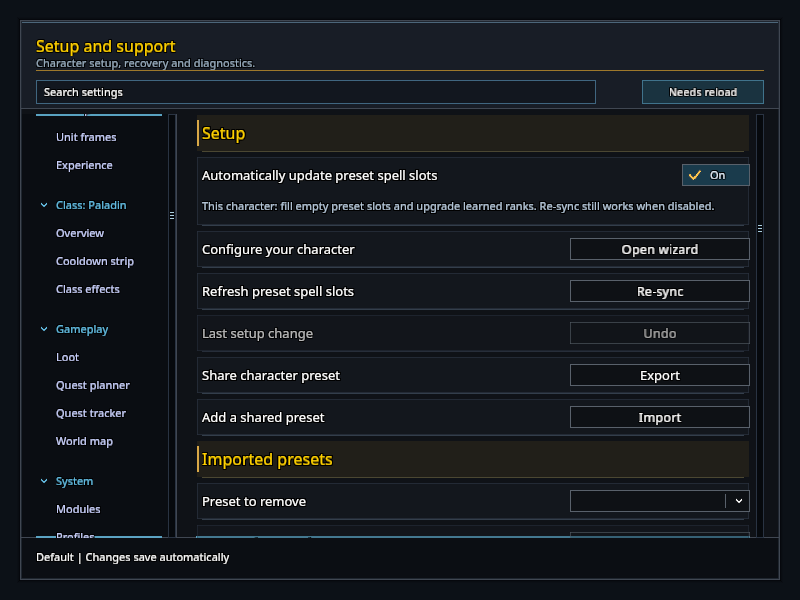
If a settings backup failed, choose Retry settings backups → Save now outside combat.