Export a UI profile
Type /rik profileexport. The export window shows your profile as text; press Ctrl-C to copy it. The export includes interface preferences and frame positions and leaves out chat history and character data.
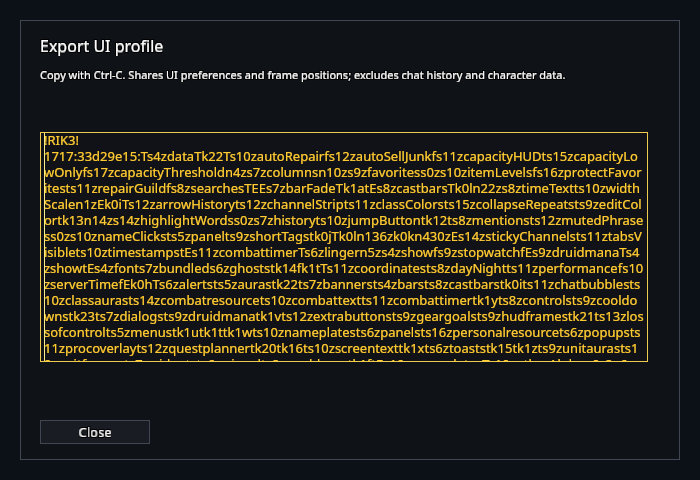
Keep an export somewhere safe before making large changes. The Export button on Settings → System → Profiles opens the same window.
Import a UI profile
On the receiving character, type /rik profileimport. Enter a new profile name, paste the text into the box and click Save import. Importing adds a profile; the one you are using stays selected.
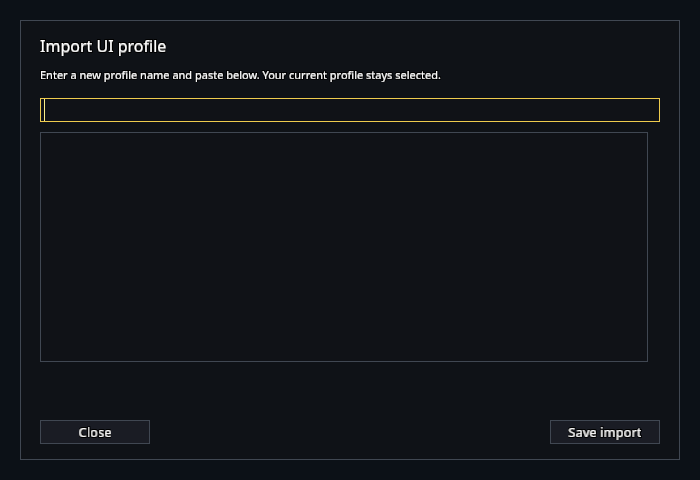
To use the imported profile, select it in Settings → System → Profiles, then reload.
Share a setup preset
Use /rik export to export a setup preset, or /rik export role for a specific role. This exports the preset definition, so manual changes to your current action bars are not part of it.
Type /rik import to paste a preset under a new name. It then appears in the setup wizard's preset selector.
Remove an imported preset
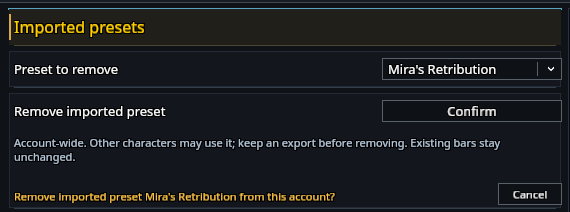
Imported presets are listed under Settings → System → Setup and support, in Imported presets. They belong to your account, so other characters may use them. Export one first if you might want it again.
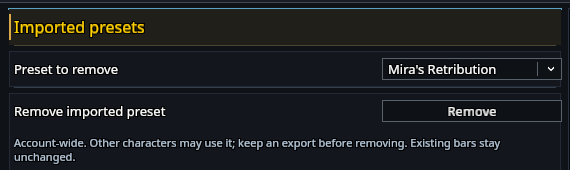
Choose the preset under Preset to remove and click Remove, then Confirm. Bars that already use the preset stay as they are, and removing a preset does not uninstall RikUI.