Open your inventory
Press your bag key or click a bag button. RikUI combines your backpack and four equipped bags into one window. The title shows how many slots are in use, and the footer shows free slots and your money.
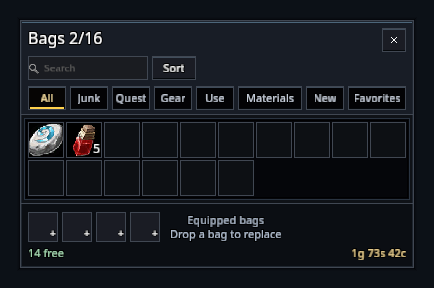
Drag the header, edges or footer to move it. The position is saved with your profile. Escape closes the window.
Items keep their usual click and drag controls. Hover for a tooltip, right-click to use or equip, and use the game's modified clicks to split stacks or link items.
Search and filters
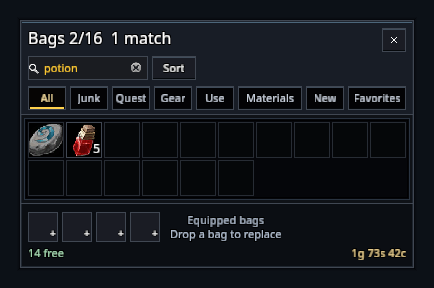
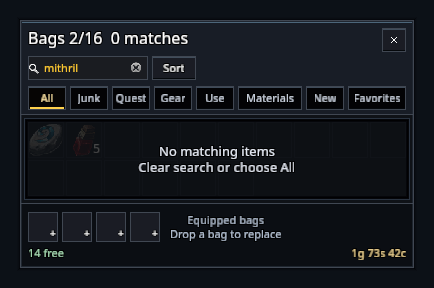
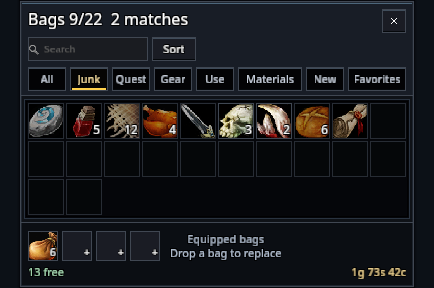
Type in the search box to dim items that do not match; the title counts the matches. Escape clears the search. Quick filters narrow the results further; All restores the full view. When nothing matches, the window says so and offers to clear the search.
| Search | Finds |
|---|---|
linen |
Items matching the name |
type:materials linen |
Linen among trade goods and reagents |
type:gear q:uncommon |
Uncommon equipment |
count:>=5 |
Stacks of five or more |
type:gear level:<30 |
Equipment below item level 30 |
q:common !hearth |
Common items excluding names containing “hearth” |
type:favorites |
Your favourite items |
id:118 |
A specific item ID |
Combine terms to narrow a search. Use ! before a term to exclude it.
Save a search
/rik bagsearch save cloth type:materials linen saves the search as cloth. Leave off the query to save what is currently in the box.
/rik bagsearch use clothopens the bags with that search./rik bagsearch listlists saved searches./rik bagsearch delete clothremoves one.
You can save eight searches. Names can contain 1–24 letters, numbers, underscores or hyphens.
Favourites and item markers
Type /rik favorite followed by an item link or ID to add or remove a favourite. Shift-click an item link into the command. Favourites have a gold F and appear in the Favorites filter. Each profile can hold 50 item IDs.
A gold ! marks an item that starts a quest you have not accepted. A gold N marks a new item; hovering acknowledges it. Stack counts appear on the icons, and borders show item quality.
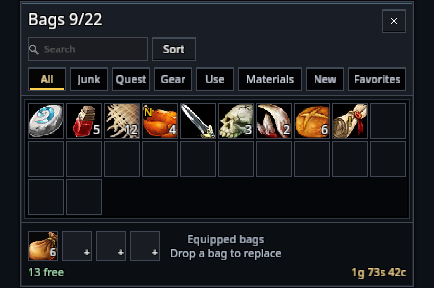
Enable Show item levels on bag gear to add equipment levels to the top-right corner.
Sort and replace bags
Click Sort to tidy your inventory. Sorting is unavailable during combat or while you are holding an item on the cursor.
The four bag targets in the footer show your equipped bags. Pick up a replacement bag and drop it on the one you want to replace. An empty target shows +. Replace bags outside combat.
Vendors and repairs
At a merchant, Sell junk and Repair all appear together. Automatic junk selling and automatic repairs are optional under Settings → Bags and vendors. Hold Shift when opening the merchant to skip both automatic actions.
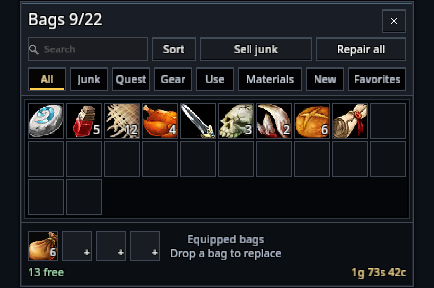
Protect favorites from bulk junk sales is on by default. If favourite junk is found, the whole bulk sale is skipped. You can still sell an individual item yourself.
Prefer guild funds for repairs uses guild money when you have permission and enough allowance. Otherwise, affordable repairs use your own money.
Capacity and money
The capacity indicator can stay visible with your bags closed. Click it to open inventory. To show it only when space is low, choose a free-slot threshold from 0 to 20.

Hover the money line for this session's income, spending and net change. Click to reset it. These totals include trades and transfers and clear on reload.
Bag columns adjusts the grid from 10 to 16 columns. Wider windows use fewer rows.